
The Portable Document Format (PDF), invented by Adobe in 1993, is the undisputed lingua franca of digital paperwork. From legal contracts, patent applications, and bank statements to architectural blueprints and graphic design portfolios, PDF guarantees that a document renders with typographic fidelity on any device.
However, that exact strength—rigid vector encapsulation—becomes a frustrating bottleneck when you need to embed document pages into a PowerPoint deck, share a single certificate on LinkedIn or Instagram, generate high-fidelity responsive website previews, or feed invoice pages into an automated computer vision pipeline. In these scenarios, you don't need a compound PDF; you need a crisp, isolated raster image formatted as a PNG, JPG, or modern WebP.
Unfortunately, turning to traditional online conversion websites introduces severe privacy liabilities. Uploading confidential corporate agreements, NDA-protected patent filings, or personal tax records to remote servers puts your data in the hands of unknown third-party cloud operators.
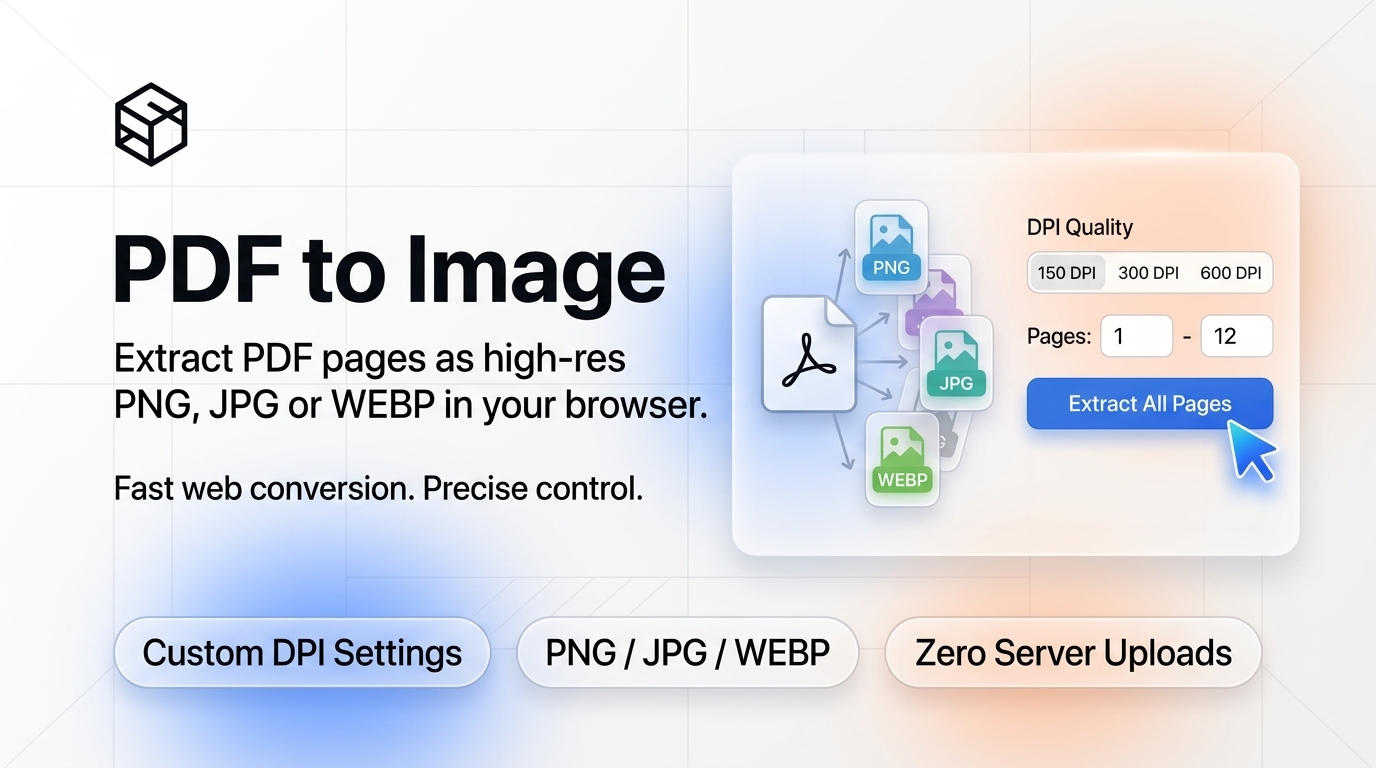
In this architectural guide, we will explore the inner mechanics of PDF vector rasterization, unpack DPI mathematical scaling from 72 to 600 DPI, compare image codecs, and demonstrate how to extract PDF pages with zero server uploads using the free ShiftTools PDF to Image Converter.
Looking for an instant, private PDF to Image?
Process, inspect, and export your files 100% locally in your browser memory with zero server uploads.
1. PDF Architecture: Vectors, PostScript Operators, and Rasterization
Unlike raster image formats (such as JPEG or PNG), which are simply two-dimensional grids of colored pixels, a PDF is an object-oriented vector graphics description language rooted in PostScript.
Inside a PDF file, visual elements are stored as mathematical drawing instructions:
- Bézier Curves & Paths: Geometry defined by coordinate control points (e.g.,
100 200 m 150 250 l S). - Font Glyphs: Embedded TrueType, OpenType, or Type 1 vector font outlines positioned at exact typographic coordinates.
- Color Spaces: DeviceRGB, DeviceCMYK, or calibrated CIE-based color profiles (ICCBased).
- Embedded Bitmaps: Photographic elements compressed using DCTDecode (JPEG), FlateDecode (zlib), or JBIG2.
When converting a PDF page into an image, a software engine must perform Rasterization: interpreting all mathematical curves, clipping paths, embedded fonts, and blending modes, and sampling them onto a discrete pixel grid at a targeted resolution.
2. The Critical Role of DPI: Resolution Mathematics
The single most consequential parameter when converting PDF pages to images is DPI (Dots Per Inch), sometimes referred to as PPI (Pixels Per Inch).
By historical specification, standard PDF coordinates are measured in Points, where 1 Point = 1/72 of an inch. Therefore, an American standard Letter page ($8.5 \times 11\text{ inches}$) measures exactly $612 \times 792\text{ points}$, while an international ISO A4 page ($210 \times 297\text{ mm}$) measures $595.28 \times 841.89\text{ points}$.
When a rasterizer renders a PDF, the scale multiplier $M$ is defined by:
The resulting pixel dimensions of your output image depend directly on this ratio:
| DPI Setting | Scale Multiplier (M) | Output Resolution (Standard A4) | Optimal Use Case |
|---|---|---|---|
| 72 DPI | $1.0\times$ | $595 \times 842\text{ px}$ | Low-bandwidth web thumbnails, quick previews |
| 150 DPI | $2.083\times$ | $1240 \times 1754\text{ px}$ | Balanced for email, slides, & web viewing |
| 300 DPI | $4.167\times$ | $2480 \times 3508\text{ px}$ | Print quality, fine typography, legal documents |
| 600 DPI | $8.333\times$ | $4960 \times 7016\text{ px}$ | High-end publication archiving, architectural blueprints |
On modern Retina and 4K desktop displays, standard screen pixel densities hover between 140 to 220 PPI. Exporting a PDF at 72 DPI forces your browser or image viewer to upscale the image, causing vector glyphs and fine borders to appear fuzzy. Exporting at 150 DPI or 300 DPI guarantees razor-sharp typography even when zoomed in.
3. Image Codec Selection: PNG vs JPG vs WebP
Once the PDF vector drawing commands are rasterized onto an internal canvas, the raw uncompressed RGB pixel buffer must be serialized into an image file. Choosing the right format depends on the document's content:
A. PNG (Portable Network Graphics)
PNG uses lossless DEFLATE compression. Because it preserves every single pixel with mathematical accuracy, it is the premier choice for documents with sharp vector lines, tables, code listings, and text. Furthermore, PNG supports alpha channel transparency, meaning pages without explicit background rectangles can export with transparent backgrounds.
B. JPG (Joint Photographic Experts Group)
JPG uses discrete cosine transform (DCT) lossy compression. It shines when converting PDF pages that consist primarily of continuous-tone photographs (such as magazine scans or photo portfolios). However, for text-heavy documents, JPG compression introduces noticeable "mosquito noise" artifacts around high-contrast character edges.
C. WebP (Google Modern Web Image)
WebP provides both lossy and lossless predictive coding. On average, a WebP file provides 25% to 35% smaller file sizes than an equivalent JPG or PNG while retaining identical perceptual fidelity. If you are converting PDF pages to embed onto a modern website or web application, WebP is the superior option.
4. The Hidden Threat of Server-Side PDF Converters
When searching for "PDF to PNG converter" online, users often land on ad-heavy web portals. While convenient, the operational model of traditional converters represents a serious data governance hazard:
- Mandatory Remote Upload: Your entire PDF file is transmitted across the Internet to a remote cloud server.
- Unregulated Storage Retention: Many converter services store files on disk or Amazon S3 buckets for hours or days to handle asynchronous processing queues, creating persistent data breach exposure.
- Regulatory Non-Compliance: Under GDPR (Articles 28 & 32), HIPAA, and CCPA, transmitting proprietary financial balance sheets, patient records, or client identities to an unvetted third-party processor without a Data Processing Agreement (DPA) constitutes an actionable legal breach.
The ShiftTools PDF to Image Converter executes entirely within your browser using Mozilla's open-source PDF.js engine compiled to JavaScript. When you drop a PDF into the browser, it stays in your computer's RAM. Zero bytes are uploaded to our servers or any cloud database.
5. Step-by-Step Guide: How to Convert PDF to Images
Follow these straightforward steps to extract pristine images from your documents:
-
Open ShiftTools PDF to Image Converter
Navigate to the ShiftTools PDF to Image Converter. No account creation, software install, or subscription is required.
-
Select Your PDF File
Drag and drop your PDF document onto the highlighted dropzone, or click Browse Files to pick it from your local storage. The browser will immediately parse the document catalog and display the total page count.
-
Configure DPI & Output Format
Select your desired export format (PNG for crisp text/transparency, JPG for photos, or WebP for optimal web compression). Choose your resolution multiplier (150 DPI for standard use, or 300 DPI for ultra-high-definition publishing).
-
Render Pages & Download
Click Convert All Pages. Your browser will render each page sequentially in real-time. Once finished, you can download individual pages or save everything packaged cleanly inside a single ZIP archive with one click.
6. Comparison Matrix: ShiftTools vs Alternatives
| Feature | ShiftTools PDF to Image | Traditional Online Converters | Adobe Acrobat Pro (Desktop) | Command-Line (ImageMagick) |
|---|---|---|---|---|
| Privacy & Zero-Upload | 100% In-Browser RAM | Failed (Uploads to cloud) | 100% Local Desktop | 100% Local CLI |
| Pricing | 100% Free Forever | Limited free tier / Paywalls | $239/year Subscription | Free (Open Source) |
| Installation Required | None (Any browser) | None | Heavy desktop software | Terminal / Ghostscript setup |
| Custom DPI Scaling | 72 to 600 DPI selectable | Fixed low resolution | Full control | Full CLI parameter control |
| Multi-Page Bulk ZIP | Yes (Single click) | Often throttled behind paywall | Yes | Scripting required |
Frequently Asked Questions
Ready to use the PDF to Image?
Use our free, private browser tool right now — 100% client-side with zero server uploads.