
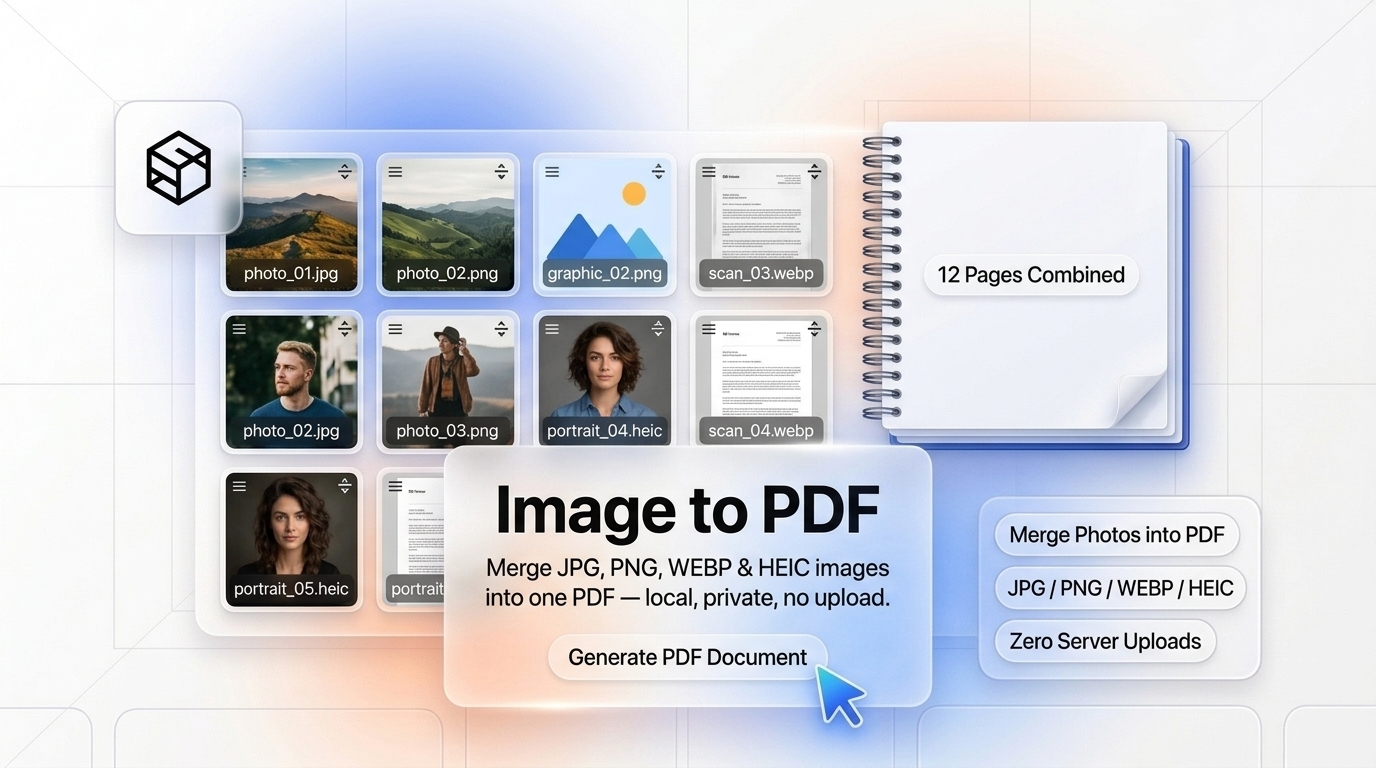
In professional business operations, legal filings, and academic submissions, sending loose collections of disconnected images is considered poor etiquette. Whether you have snapped photographs of handwritten receipts for expense reimbursement, scanned physical identity cards, compiled medical radiology scans, or curated a design portfolio, recipients invariably request a single, standardized, multi-page PDF document.
Yet compiling multiple JPG, PNG, modern WebP, or Apple iPhone HEIC photos into a cohesive PDF is frequently hindered by frustrating trade-offs. Desktop software suites like Adobe Acrobat Pro require expensive annual subscriptions, while most free online converters impose aggressive daily limits, paste watermarks over your pages, or—worst of all—upload your sensitive private scans to unverified remote servers where they may linger indefinitely.
In this comprehensive engineering guide, we examine how PDF compilers structure image objects at the binary level, explore how aspect-ratio fitting and page geometry algorithms operate, and show you how to merge unlimited photos into pristine PDFs directly in your browser using the 100% client-side ShiftTools Image to PDF Converter.
Looking for an instant, private Image to PDF?
Process, inspect, and export your files 100% locally in your browser memory with zero server uploads.
1. Inside the PDF File Format: How Images Are Encapsulated
Many users assume that converting an image to a PDF involves translating pixels into vector lines. In reality, a PDF acts as an encapsulation container.
A PDF document is organized as a directed graph of dictionary objects:
When an image is inserted into a PDF page, the compiler creates an External Object (XObject) of subtype /Image. This object defines:
/Widthand/Height: The exact pixel resolution of the raw raster bitmap./ColorSpace: Specifies whether the image uses/DeviceRGB,/DeviceGray(grayscale), or/DeviceCMYK./BitsPerComponent: Typically 8 bits per color channel (24 bits total for standard RGB)./Filter: The compression codec utilized to encode the binary stream.
When embedding JPEG photos into a PDF, high-performance engines like ShiftTools Image to PDF do not decompress the image to raw pixels only to recompress it. Instead, they extract the existing JPEG binary stream and wrap it directly into an /XObject using the /DCTDecode filter. Because no re-encoding occurs, the compilation is virtually instantaneous and preserves 100% of the original photo's sharpness and fidelity without generational loss.
2. Page Geometry & Scaling: Fitting, Filling, and Adaptive Sizing
One of the primary challenges when converting diverse photos into a single PDF document is managing mismatched aspect ratios. A smartphone photo captured in portrait mode might have a 9:16 or 3:4 ratio, while a scanned document has an ISO A4 ratio ($1:\sqrt{2} \approx 1:1.414$).
To present your images cleanly, ShiftTools provides three distinct layout modes:
A. Fit Page (Maintain Aspect Ratio with Margins)
This is the standard corporate setting. The target page (e.g., A4 or US Letter) is fixed. The image is scaled proportionally so that its widest or tallest dimension fits within the page margins without clipping or distortion. Any remaining space is filled with clean white margins.
B. Fill Page (Crop to Match Dimensions)
The image is expanded to fill the entire page surface area from edge to edge. Any excess portions of the image extending beyond the page boundaries are trimmed. This is optimal for borderless graphic design presentations or full-bleed art books.
C. Adaptive / Match Image Dimensions
Rather than forcing images into fixed rectangular paper templates, Adaptive mode calculates a custom /MediaBox for every single page matching the exact pixel dimensions and aspect ratio of that specific image. Page 1 can be a wide panorama, Page 2 a square Instagram post, and Page 3 a vertical receipt, each framed with zero excess white borders.
| Paper Standard | Point Dimensions (1/72") | Millimeters / Inches | Best Used For |
|---|---|---|---|
| ISO A4 | $595.28 \times 841.89\text{ pt}$ | $210 \times 297\text{ mm}$ | Global standard (Europe, Asia, UK, Australia) |
| US Letter | $612.00 \times 792.00\text{ pt}$ | $8.5 \times 11.0\text{ inches}$ | North American standard (USA, Canada, Mexico) |
| US Legal | $612.00 \times 1008.00\text{ pt}$ | $8.5 \times 14.0\text{ inches}$ | Legal contracts, court transcripts, agreements |
| Adaptive (Fit to Image) | Dynamic per photo | Variable | Photo albums, receipts, mixed resolution collections |
3. Modern Formats: Unlocking WebP and Apple HEIC in the Browser
A common limitation of older desktop PDF software is poor support for modern image codecs. If you transfer photos from a modern iPhone or iPad via AirDrop, they typically arrive in HEIC (High Efficiency Image Container) format. Similarly, web downloads frequently arrive as WebP.
Standard operating system PDF printers often fail or throw errors when encountering HEIC containers because the underlying PDF specification does not natively define a direct /HEICDecode stream filter.
ShiftTools overcomes this obstacle using client-side WebAssembly (WASM) decoders:
- In-Memory WASM Demuxing: When an iPhone HEIC file is dropped into the browser, a compiled WebAssembly binary (such as
libheif) parses the HEIF container and extracts the raw uncompressed RGB pixel buffer in milliseconds. - Transparent Alpha Handling: For PNG and WebP files with transparent alpha channels, ShiftTools automatically generates an accompanying
/SMask(Soft Mask) dictionary, ensuring transparent regions render seamlessly against white or colored PDF backgrounds without unsightly black borders. - Automatic EXIF Orientation Correction: Smartphone cameras routinely record photos with physical sensor rotation, relying on an EXIF orientation metadata flag (e.g., Orientation 6 = 90° CW). ShiftTools reads EXIF metadata tags and applies the appropriate transformation matrix to ensure your PDF pages are right-side up automatically.
4. The Privacy Paradox: Why Cloud Converters Put You at Risk
Images that people convert to PDF are rarely trivial. They are overwhelmingly sensitive:
- Government Identity Documents (Passports, Driver's Licenses, National ID cards).
- Financial Statements, signed real estate deeds, and tax returns.
- Confidential medical lab results, prescription receipts, and insurance claims.
When you use a generic online converter, you are uploading those high-resolution photographs to a remote cloud server. Even if the website claims to delete files after one hour, server-side data backups, access logs, and transient file caches introduce unacceptable exposure vectors under privacy regulations like GDPR Article 32 and HIPAA.
With ShiftTools Image to PDF, the entire PDF file structure is assembled in your local web browser's memory using JavaScript and WebAssembly. Disconnect your Wi-Fi, go offline, and the tool will still convert 50 images into a PDF instantaneously.
5. Step-by-Step Guide: Compiling Images to PDF with ShiftTools
Follow these straightforward steps to merge your photos:
-
Open ShiftTools Image to PDF Converter
Navigate to ShiftTools Image to PDF in any browser on your computer, tablet, or phone.
-
Select or Drop Your Photos
Drag and drop your images (JPG, PNG, WebP, GIF, or HEIC) directly onto the upload zone. You can select multiple files at once or add more images later.
-
Arrange Page Order & Rotate
Use the visual thumbnail grid to drag pages into the desired sequence. If any smartphone photos were captured sideways, click the rotate button to orient them correctly.
-
Configure Page Settings
Select your target page size (A4, US Letter, or Fit to Image), choose orientation (Portrait or Landscape), and adjust page margin spacing.
-
Generate and Download PDF
Click Convert to PDF. Within seconds, your unified document is compiled and downloaded directly to your local storage.
6. Comparison Matrix: ShiftTools vs Alternatives
| Capability | ShiftTools Image to PDF | Cloud-Based Converters | Adobe Acrobat Pro |
|---|---|---|---|
| Processing Architecture | 100% In-Browser (Local RAM) | Cloud Server Upload | Local Desktop App |
| Pricing | 100% Free Forever | Freemium / Monthly paywall | $239/year Subscription |
| iPhone HEIC Support | Native WASM Decoding | Varies / Often unsupported | Yes (with OS codecs) |
| Quality Loss / Recompression | Zero (DCTDecode Pass-Through) | High lossy recompression | Configurable |
| Watermarks Added | Never (100% Clean) | Frequent on free tiers | None |
Frequently Asked Questions
Ready to use the Image to PDF?
Use our free, private browser tool right now — 100% client-side with zero server uploads.